What is sitecore exception of "alarm clock event subscriber"

April 30, 2022 ·

What is sitecore exception of "alarm clock event subscriber"

Hi Team,

Today i will share one of the exception we started seeing in one of our CDs, We all like to keep our logs clean right, any exception can be symptoms of something going wrong

With my surprise, i was seeing following which was being continuously logged

Problem

The exception is

"ERROR Exception in alarm clock event subscriber"

It would have not caught my eyes, But because i was troubleshooting something else and anything in the logs looked suspicious to me and i researched it further and what happens is below

Cause

Sitecore documentation has explained very clear working of what goes behind the scene when Tracker is trying to submit a session to xConnect and what if xConnect is down

Refer : Sitecore documentation

"When the tracker submits a session to xConnect, but xConnect is temporarily unavailable, the tracker classifies this as a transient error (meaning it assumes xConnect becomes available later). The tracker adds the session to a submit queue that, by default, serializes the session to disk. The submit queue service later re-submits the session to xConnect at configurable intervals"

So that means if xConnect is unavailable there is some mechanism where the files gets stored on a file system,  which can be later picked up by the system when xConnect becomes available

Now in this process if xConnect becomes unavailable for sometime and it could be possible that those file which were created on file system by tracker might get stale or corrupt and that is from where the above exception takes birth.

Solution

First of all i wanted to check where on the file system the "Submit Queue" is being created and wanted to double check do i have any files there

and where the tracker will create a file on the disk, that path is mentioned in the \App_Config\Sitecore\Marketing.Tracking\Sitecore.Analytics.Tracking.config


and "dataFolder" is "sc:variable" and can be found in sitecore.config file from where you can get the actual path 

It pointed me to App_Data/Submit Queue folder on my CD server, and because i was getting the exception on my CD0, i went to that path and i saw following files there in queue waiting to be processed


i saw files from 2020 and after further research i took back up of those files and removed those file from the queue, because they were just there and not processed due to some reason

after doing this i went to my CD0 log stream, and i was happy to see that there was no exception and it worked !!!

Conclusion : We all want to keep our logs clean, so some exceptions might not be harming from the processing or performance point of view but its good to get it cleaned, you could also set some automation where if there are files older than some months, you can clean that up to keep your logs clean from these exceptions


Coveo for sitecore get started step by step part-4

September 07, 2021 ·

Coveo for sitecore get started step by step part-4


Hello Friends,

Its been >15 days i did not publish the next chapter as i was traveling on the weekends, but i wanted to make sure i release Part-4 today.

Previously we talked about high-level over view of coveo and what are the building blocks of it and what are some of the most important steps we should know before starting on coveo, As i said earlier as coveo has huge documentation and its a big sea of functionalities, but my purpose is to cover a crash course topics and how easily you can get started with coveo.

So i am thrilled today as i want to cover the hands on where we will create a search page from scratch and we will see what configurations are involved in that process and how indexing is being done and how ultimately data is being shown on the page from coveo index.

Search Page Requirement : I will be creating a simple search page for candidates, so consider a business scenario where i have a huge pool of records in my database where candidates are stored (Probably in Sitecore), now as a hiring manager i want to build a search engine where i can easily search candidates, apply different search filters, view their details.

Now having said above, If we want to start with the fundamental first, We will need following things

1) Item Template  : We will need an item template for candidate where all the possible fields that we want to include or show on page will be there, Basically this is the template for which we intent to index the data as well as want to filter out this template in coveo rule editor.

2) Coveo Index and Field Configuration : As in previous parts we saw what are the essentials and what are important configurations of coveo, so now first thing what we will do is we will make our fields indexable in coveo index

NOTE: in my previous parts i have covered how to set up coveo for your organizations and what will be the farm name and where the index data will go etc. i will use my existing farm which i have created called "D-Farm" in which i am planning to index my data

Now to add specific fields to coveo index configurations, we will go to "Coveo Indexing Manager" from Sitecore's control panel like below 


 Once we are into Indexing manager, you will see your master and web coveo indexes, we will not touch them or rebuild them right now, we will just click on "Fields" option and will make sure our template's fields are also marked as indexable here, see following screen

Configure our template's fields to be indexable

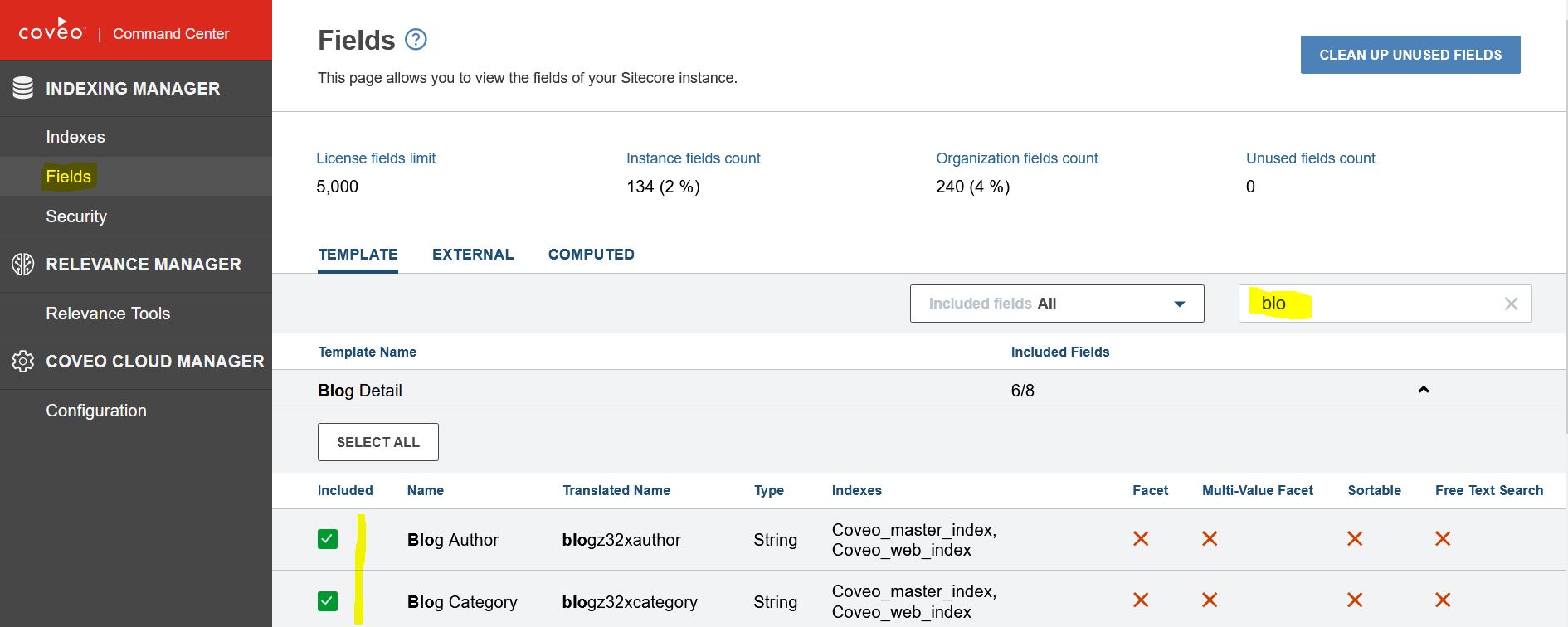
Click on "Fields" and it will list all the available template, we can filter our specific template by searching that into the search box as shown below, and it will list all the fields of the template, we should tick mark those fields which we want to index.


Now after selecting fields, click "Apply and restart", this will update the "Coveo.SearchProvider.Fields.Custom.config" file in our wwwroot\<<Site>>\App_Config\Coveo folder

NOTE: This file is responsible to tell coveo indexer which fields to index, and you should check this file in source control, because you will want to send this file in the deployment so these settings are readily available in higher environments and you do not need to do above process on other higher environments.

3) Now once we are satisfied with the configuration, we can now create Sitecore item using our template, so we can index those data, so i will skip that part here, as those are standard Sitecore items created from our candidate template.

4) Now before we assemble anything on the page, we should first make sure that our data is getting indexed and our coveo configurations etc. are just in place, there are couple of ways to do it
  • We can use our Sitecore's indexing manager where all the indexes are listed and we can index data into different indexes from there, here we will find our coveo_master_index and coveo_web_index, we could trigger indexing from this screen


  • We can go to control panel and coveo indexing manager and from there we can rebuild the indexes which will ultimately build the indexes
  • We can right click on the parent node of our Sitecore item and select option, "Re-index tree" from developer toolbar
5) Now We can go to Coveo Cloud , It will prompt you to login with different options, your organization or you individual need to have license for this to login, in my initial posts i have explained how to register etc.

Here i am considering you already have your organization set up and your farm set up, in my case its "D-Farm", i will go and login into portal and will try to search our data in index to make sure if they are available in index or not


As you can see above i am able to see that my data are now indexed and i can now start on the front end part to assemble coveo components as data are indexed, one more thing also need to check if all fields are indexed or not, you can click on the search result to go into the record and see all the fields which were indexed.

NOTE: If you do not see your records indexed, you might need to see logs and troubleshoot which is a different topic, which we will cover in future post, but you can use coveo's health check functionality like below to see if coveo is working fine


Clicking on "Diagnostic" will show you all the very details where you can see if things are fine or you need further troubleshooting.

Show time: Now, consider that your data is rightly available in coveo and now you are all set to assemble the components on to the page, very first step is to install the coveo package (In my previous blog post Part-2 i have shown what are the components that ships and gets installed in the package and how can you create different coveo items from it.)

So please refer to previous post PART-2 to know how we can get access to coveo components and their templates and functionalities, so we can start assembling them, also if you read my Part-1 which mentions what are the mandatory components to get started, so now let's start assembling the components

Creating a Search Page and assembling of components

As i said earlier in one of my post that there is a documentation available from coveo about following best practices or things to consider before you start, if you have not yet seen Part-3 , find that PDF link here, to read more about what coveo recommends.

Now i will straight away move towards practical implementation of how to assemble coveo components.

Choosing a layout for displaying results

Coveo provides its default view to render the results, but in almost 99% cases in real project, there will be a need where you will need your custom design and custom HTML you want to display for results

For example in my project, my need was to show the results like 3 cards in one row, and it should show 12 cards on the page by default, meaning 4 rows of 3 cards each and there will be see more button a user can click and see other results by clicking "See more" button and it will again load another 12 cards.

Let me show you the layout i was intending to build (Though the amazing design was already given to us, by designers, we now needed to convert them into working HTML). Just to give you more idea, i am putting the wireframe down below

As you can see the page is intended to have these two columns, on left you can see facets, We will talk about facets in coming future post, and on right hand side you can see 12 cards, each card will show details of a candidate, and on see more there will be lazy loading of another 12 cards, on top we have sorting via which we can sort results.

Now, we are interested only in right hand side today in this post, We will be creating our own custom html and tell coveo to use our custom HTML instead of its default html to render the cards.

To full fill above need, we will need to assemble few coveo component on our page and configure them so that they read from our index as well as show our custom HTML too.

We will be talking about three most important components here to achieve the right hand side part

1) Coveo Search Resources
- We already have talked about this component in Part-1, but to give you highlights, this is a mandatory component for any coveo search page and it is needed so that it can load coveo specific JS and CSS, You can read more on my Part-1 or on coveo documentation.

2) Coveo Search Interface 
- This is the main component that we will need to use, remember i talked about writing a rule specific to our candidate template to read and display only candidate specific records out of the full index (index can have data of multiple template but we only want to show candidate data.), this is the component which gives us the ability to write rule and filter results from the index before displaying in the browser.

Also When you add this component on the page few other components will automatically be added onto the page like "Automatic boosting", "Query Filter", "Query Ranking" etc. we will not talk about them here, you can read more on coveo documentation online.

3) Coveo Results List
Responsible for displaying results, It provides configuration to select two layouts Card and List, There is also a possibility of giving user a choice to select between those two. (using Coveo Result Layout component).

4) Coveo Results Template
Coveo provides two out of the box templates types, As i said above in the post, if you want to have control over the html and the structure how the results are displayed, this is the component provides that, Both of below template enables "Underscore.js" syntax.
  • File Result Template 
          This is physical file based template, meaning we can create our own HTML file and put it on specific folder and later on tell coveo to use that template, we will see that soon.
  • Item Result Template 
          This is data source driven template, so it needs the html script to be in the data source from where the component can pick what structure to display.

Phew !!! Hope things are clear till now, Now its time to assemble those component from experience editor and connect them with index as well as configure result template and other things, basically we should have the page up and running with us after the blog post.

NOTE: Remember coveo provides its own placeholders when different components are dragged-dropped, in my case i will be adding other containers and column splitters etc. too in those placeholder just to make sure i get the desire out put using import/export of that page and our FEDs can style it and i can import it back into my Sitecore.

Assembling components

Ok, now i will just create an item where i want to use as my search page, and assemble all those components, because i am using SXA, i already have a partial design which my context page item is using, so i will assemble those on the page design

Very first thing i will do is i will create a partial design where i can put all my components, and i will put all the mandatory components first which are Coveo Search Resources, Coveo Search Interface, Coveo Search Result List

As i have said once you add coveo components, it gives its own placeholders where you can put other components.


As you can see in above image, i am just putting this component in "main" placeholder of our partial design

Next, step is to add other components like below


Another component i would like to put is "Coveo Search Interface", you can see in the backdrop of the image, coveo search resource is also there and after that we will add "Coveo Search Interface".

Now, the moment you add "Coveo Search Interface", It also adds some default components as well as opens up the placeholder where we can put other components like below

Now, we will add the container and the columns splitter, remember its not coveo specific but because my page style required to have column splitter i am adding that, and on left we will have FACETS and on right hand side we will have our resulting cards.

Before we assemble "Coveo Result List" and "File Result Template", We will need to create those configuration data source item in coveo global settings item in Sitecore, so we will first create them and after that we can give those data source in corresponding components 

Coveo Global Components Settings

You can download the sample coveo items from coveo example page, and if you have installed coveo package you can also create these items from choosing from insert option and selecting appropriate coveo template to get all below items, I have already explained that in Part-2. so whatever the way you do, you will end up with getting all coveo data source items like below 


Now, i will show settings and configuration which are must to get the desire results 

As we talked before, we will be using "File Result List Template", that means we will have our own custom HTML template created on the disk in the folder "C:\inetpub\wwwroot\<<Site>>\Coveo\Hive\templates", so i will create a cshtml file and give that file name in one of the datasource settings.

Custom File Result List HTML file

On above path i,e "C:\inetpub\wwwroot\<<Site>>\Coveo\Hive\templates" i will create my custom template file which will have coveo specific syntax to read data from index, and as we already have seen that out data is in index, so you can find my HTML below (below is just small part of my HTML)


This HTML will differ from project to project depending on how you want to show one specific record, in my case this is the HTML of one specific card, i will save this file on the location mentioned above and give it a name "MyCustomFileResultTemplate.cshtml"

Now, we should create a data source configuration for our "Coveo Search Template" and create a new file result list datasource and configure our new template name into it which we created above.


And once data source item is created, we can give name of our new custom template there, so instead of default template we can have our custom HTML rendered like below 


 NOTE: Remember we will select all these data sources when we assemble components on our partial design, so it will automatically get these configurations instead of default behavior.

Now next up is to create data source item for "Coveo Search Interface", this is very important because out of all the indexed document, we only want to show our candidate specific data on the page, Remember in the starting of this blog i mentioned we will use "Item Template" to be filtered, we can do that be below configurations 


NOTE: There are other different settings that you can tweak in different data source items, but i will put it on you to check and try on your end

Now, We have the needed items created, so let's go back to our partial design and add "Result List", and "File Result Template" components and configure our data sources 

Let's first add "Search Result List", Before that Let's change the data source of "Coveo Search Interface" to point to our recently created data source so that it filter our results from all the other data

so let's open our partial design and find "Coveo Search Interface" and edit its data source and give following (Path of the newly created one above)


Now, Lets add Coveo File Results List component on to the page in existing coveo place holder and provide the data source which we have created for it above with our custom result template so it displays the result as we want


After selecting the proper data sources and our custom template, the page should look something like below, remember before doing these, i already had couple of export given to FED and i also had lot of imports hence the things are coming styled for me, in normal case, there will not be any custom CSS apart from coveo, you will need to give those pages to FED to style them as per your need.

NOTE: as i said earlier, my look and feel needed me to put column splitter in existing coveo placeholder and inside left and right column, we will put out components, so on right hand side i have placed our coveo file result list, coveo result list components.


As you can see the data is already started showing up from the index, and also its showing as per our custom html template.

Now this page can be given to FED and they can style it and we can import it back to get it perfectly styled on our end

In next post i will show you how to create facets on left hand side and in coming posts, i will also show you how can we write client side coveo events to do some very important tasks

Hope this was useful for all of you.

Coveo for sitecore get started step by step part-3

August 15, 2021 ·

Coveo for sitecore get started step by step part-3

Hello People,

Wish you all a very happy independence day.

So its weekend again and our journey towards learning is also continues..., So today we will learn and go through most exciting PART-3 of the Coveo for Sitecore 

Till now if you have not seen Part-1 and Part-2 yet, go and have a look at them by clicking the links.

So, As in previous parts, we were gaining knowledge about basics of coveo and prerequisites of it, and now the platform is set to take the plunge into more hands on and practical part of the implementation.

Just to recall till now we have seen installation of coveo package and we had all HIVE templates and coveo renderings installed with that, now today we will dive more into coveo configurations to make a search page, but i will make sure you get the information of all essentials  and how they are configured and how they read from coveo indexes.

Preparing to Creating a Search Page 

To create a search page, we will need following things

1) Decide "What to index", As i said earlier there is already a rich information on Coveo for Sitecore and you can consider my blogs as a crash course on that, i have picked most important things to get started on it, and that is why i have pointed out some important links also filtered from huge documentation.

if you look at this  PDF from coveo implementation, you will get detail information on what to do before even starting coveo implementations, one of the important topic from that is "What to index", as a business we will need to decide what my search page will contain and how much i need to index so we can best utilize the coveo for sitecore.

This questions depends on how many different search pages you have and depends on your sitecore content tree too, there are ways to exclude things and specific types of items from coveo index to make sure it only indexes relevant items only, You can read the PDF doc above for more info. on that, but basically we will need data to be indexed.

So in a nutshell, because you will be creating search page for either whole site or for specific entities like blog, news, products etc. those will be indexed.

Coveo component provides also facility to write "Rule" (this is a cool way as it is seamlessly integrated with sitecore), on coveo component also you configure a rule to only show "Results of items with specific template only", in this way you can use same index but on different page you can use that component with different rules and it will display different data from same index, we will see that in next blog in detail but it looks something like this on coveo's configuration point of view in sitecore


NOTE: Above example shows that, i could have so many item indexed with so many templates, but because i am creating a blog search page, so when i put "Search Interface" component on my page, i can give page specific template condition to only read those data which are targeted for specific template

In this way, i have flexibility to have multiple search components on different search page, targeting different templates to create other coveo search pages.

Now, If we take an example that i am creating a search page for my blog web site or products list page, i will be having either my datasource items or page items which will have all the fields which we want to show on the page and include them in a search, so we will need to mark those specific template items as indexable in the config from the coveo UI like below.

Go to sitecore control panel and select "Indexing Manager" from "Coveo Search" section as below 


It will open "Coveo command center" where all index related configurations can be done, so if you go to "Fields" menu on left side, it will list all the templates from sitecore and allow us to mark fields as "Include" in index, that means from next time when we index, fields of particular template will also be included in the index, So click on the template name and it will expand the list of fields and you can select fields which you want to include in the index and it will show "Apply and restart" button, if you do that, it will update the index configuration file with this field info (we will see that in next bullet point)


2) "Proper Configurations file in place", Coveo comes with its default configuration files which serves multiple purpose, but we will only focus on those files which are needed for searching and which we will be modifying. If you want to know about all the Config Files , Click the link.

Most frequent files that we will be using are 

Coveo.SearchProvider.Custom.config: Contains the custom configuration of the Coveo Search Provider and pipeline examples. We can modify this file for
 our needs, I will show you the example soon what kind of modifications can be done for our needs.

Coveo.SearchProvider.Fields.Custom.config: Contains the list of include fields. This file is automatically generated when from indexing manager menu we mark different fields as indexable from the interface or the PATCH or PUT fields services for the first time. No modification should be done to this file directly, Basically this file will be read by indexing mechanism to know what are the fields to index, We will see this in detail soon how this can be done from the interface and from where.

As shown in point-1 when we do "Apply and restart", it generates this configuration file in our wwwroot->app_config->coveo folder which contents all our needed fields that we selected.

NOTE: Coveo configuration file path may depend on version of the sitecore, Generally they can be found on above path, but check for documentation for sitecore config file path for different versions.

We should make sure to include this file in our source control to deploy it to higher environment once we are done developing in local, so this configuration is available on upper environment and fields can be indexed straight away.

3) "What design layout to use", Because to show the data on search page, coveo gives flexibility to use our own HTML template, which at the run time will pick our custom view to show the data, It is not part of indexing but it will come into picture where we want to show the data, so this decision will be made if coveo should show default view or it should show our custom view, and it will our custom view because our indexed data will have multiple fields and we would like to show them, we will see soon how can we configure our custom template and configure inside coveo so at run time it will show our custom HTML structure with data.

If we choose to use our custom html (generally we will need to do is because, we always need custom design and look and feel from coveo), we will need to create cshtml file in following folder 

wwwroot->Coveo->Hive->templates->List of templates

We will need to tell coveo that use custom HTML and not its default, for that we will need to configure that in one of the existing coveo configuration in sitecore, we will see it in detail in next blog, but following how it looks, i have used custom html name as "MyBlogs.cshtml" in above path and below is how we should map it to "Coveo Result"


4) "Search page layout", We will need a different layout in sitecore, Because If we want to write our custom coveo queries and customization to data on client side when data is being rendered, we can use those JS etc in this custom layout (because other non-coveo pages will not need those JS so its good not load them there and using different layout will help).

5) "Proper coveo OOTB components in place in presentation detail with proper data and field configurations in them", Coveo components comes with their own place holders and configurations, so when you can put and use certain coveo components in those placeholders only and that is why there is a list of components which are mandatory for a search to work, We will see them in detail soon.

Point-5 is also as important as other points, because we will need to assemble all the coveo components on the presentation details of the specific search page, all the configurations we did above will work in conjunction with those components and our search page will be ready

In next blog, i will show you how the page is configured and what are the components we should use and if any configuration needed and how to work on different facets everything, so i think we are getting closer to the hands on

Wish you all a very happy independence day once again !!!
  
Sitecore SXA "Add here" button not available and not able to move components from experience editor

August 01, 2021 ·

Sitecore SXA "Add here" button not available and not able to move components from experience editor

 Hi Folks,

Hope you all are doing just fine and getting yourself vaccinated and staying home, Today i would like to share one information or a scenario which we encountered last week.

Scenario

We are using Sitecore SXA (Version is not important here as it will same for all), and one of our content author logged a bug that, they neither able to see "Add here" button on specific place holder nor they are able to move the component on the page in different location, Move option was disabled, and they wanted to have a freedom of moving component here and there and also "Add here" is a vital functionality to add component to specific place holders.


Troubleshooting

With my surprise as i have never seen this behavior before, 

1) I first check their access rights but they had all of needed permissions and they were able to do things normally before.

1) I started looking into place holder restriction and different settings of allowed renderings to see if there are no such restrictions which content authors are not aware of.

But there was nothing of that sort i found out.

2) Now to dig in further, I concentrated my troubleshooting around partial design, page design and the item or page itself to see how components are placed, and i could see that there was nothing placed on page design or partial design, but everything on a page's presentation details only

As we know, There are three default place holder that comes up with SXA partial design

Header, Main and Footer

Now rule of thumb for SXA is 

"When you put rendering on main placeholder using partial design, you will not be able to add renderings from content item (page)"

And that is why my initial checking was to see if there are any components on partial design, but strangely there were no components on partial design.

3) Now started decided to create one empty page using those same page template where these partial design were mapped, and strangely the behavior was same, so one thing was sure, it was not due to any renderings on the page which was causing issue as with empty partial designs also it was not working, so one thing was ruled out, that page item has no issues.

4) Now i decided to remove one by one partial design from the page design which was mapped to page template, so i first removed header partial design from the page design which was assigned to the page item, and with my surprised things started working, i had no idea why removing header partial design worked, and why header partial design is causing issue to the main page item?

5) Now it was time to inspect rendering on the header partial design, there were standard menu items and other things, at first glance things looked ok, but looking into detail, i decided to look what are the place holder used for those renderings, and one of the rendering had "main" place holder instead of "header"


So if you are configuring rendering for header, there is no logical point to use "main" placeholder, if you want to utilize "main" placeholder, you would use different partial design which supposed to use "main" placeholder which will reside in center portion of the page

so i decided to remove "main" placeholder and i used "header" placeholder instead, behavior of the component did not change because it does not matter if you put it on a header or main, it was just a global component that should be on all the page, but it fixed our issue 

Solution

In SXA, if you have put item in "main" holder from partial design itself, it will not allow you add item from content item or page item in that same place holder, and that is the reason "Add here" was not shown, because SXA saw that there is already an item in "main" placeholder (though it was added from header partial design, but rule still applies) and hence it locked that placeholder as it was used and did not allow to add items from content items.

And now move button was also enabled and components were movable too, and "Add here" button was also visible on main place holder to add items on to that place holder.


Hope this will help other people running into this type of issues.


Coveo for sitecore get started step by step part-2 (Installing a package)

July 04, 2021 ·

Coveo for sitecore get started step by step part-2 (Installing a package)

 Hello Folks,

As promised, Today i will be showing you what are the initial first steps towards getting up and running with Coveo for Sitecore.

In my previous blog post PART-1  i have given some basic understandings of few things of Coveo for Sitecore, if you have not checked them, check them out by clicking the link given above.

So very first thing that you need is to install a package of Coveo for Sitecore from the Coveo official website, Here is a end point from where you can download the package for your preferred Sitecore version.

Coveo for Sitecore Release & Download It is worth checking for supported sitecore version and dependencies

Let's start

1) Ok, because i have set up one instance of Sitecore 10.1 on my machine, i will download corresponding package from the URL above, you can see my version in the below screenshot 


so i will be downloading package for 10.1 and hence see below screenshot, i will be first installing Coveo for Sitecore package 10.1 and after that i will install SXA module package, Because to install SXA module for Coveo Sitecore, you first need Coveo for Sitecore package installed on the instance

2) now i have installed the package and i will be installing it from Sitecore install package wizard like below 


as you can see the package is the compatible package that i downloaded for my Sitecore version, now we just need to go and install it and in the last final step, it will ask us to connect with our organization, i have mentioned about what is organization and what is the purpose of it in my "PART-1"

3) Once you finish installing at the last step, it will ask you to activate the Coveo for Sitecore package by signing into to the organization

On clicking "ACTIVATE COVEO FOR SITECORE PACKAGE" button, it will take you to the login screen from where you can login into your coveo organization 

4) I already have my test organization set up using my office365 login, but there are different options too, go ahead and create the organization or select the existing organization like below, because i logged in with my already associated organization for which coveo license was already purchased so it gave me selection of which organization i want to select from which are already activated for using Coveo for Sitecore 


Select how you want to index things, i have selected "Only Index Sitecore item data", but you can also index rendered HTML too, but as we are building a search page which needs to read and indexSitecore items, i have selected second option

Also as described in my previous article about organizations and farm name etc, here also Coveo will ask to provide a "Farm name", what is farm name and what is the use of it is i have given information on my "PART-1"

5) For this demo, i will give farm name as "D-Demo-Farm" and i have provided my current Sitecore instance admin user name and password, once done click "Activate"


6) So, after above step, once your coveo is activated for your organization against your current Sitecore instance, and you will be able to see the default coveo_master_index and coveo_web_index on the coveo dashboard, because we have not indexed anything yet it has no documents yet

So far so good, we have now installed Coveo for Sitecore in our Sitecore instance and we can now index our content so we can start creating our search page from it

7) But before we do that, we will need to install another package for all coveo components so we can utilize those components to create our page, now as coveo for sitecore is set up in our local, we can go ahead and install "Coveo for Siecore SXA components" package from the same URL i mentioned above


NOTE: Perquisites before installing this is, We should have Coveo for Sitecore installed (which we already did) , and SXA should be installed on the Sitecore version too

8) After successfully installation of these two packages, let's verify that all Coveo HIVE templates are available in our template section, so we can create components and data source from it for our search page


9) As we can see templates are available, now before creating a search page we will need to create and location where all coveo data source and its components will reside, we will do that in our site settings area, we will need to right click our settings and select "Insert from template option" and create a folder all coveo for sitecore components like below


10) now, we will need to select a template from which we can create a folder where coveo components can reside, select "/sitecore/templates/Coveo Hive/Structure/Global Folders/Global Parameters Folder" in template path and give item name as "Demo Coveo", once done it will create the container folder and which will have all insert options available to start creating coveo component data sources which will be needed to be configured for coveo search page.

Phew !!! i think it is lot of information at once, so let's take a pause here and in next article i will show you how we can start creating a search page and start configuring the components on that page, we will need to do some house keeping, indexing of items, create some items and populate them with data and index them etc.

I hope so far this series is adding some value in implementing Coveo for Sitecore.

Tips & Tricks

Because our purpose is to understand basics hence we are going step by step, but, do you know? Coveo provides example page branch templates from which we can create page item and it will by default create all the needed items for us, we just need indexed data and some configuration and it a search page will be up and running, See below how i have create one sample page "Example Page" by selecting "Example Template", like below 


So above is the template you will select from "Insert from template" option on a home item and once done, you will see all coveo component data source and parent folder items will get created automatically, like following


Cool, haan? We will utilize this fast approach and create our custom search page from it

 See you in the next article !!!