
Wish you all a very happy independence day.
So its weekend again and our journey towards learning is also continues..., So today we will learn and go through most exciting PART-3 of the Coveo for Sitecore
Till now if you have not seen Part-1 and Part-2 yet, go and have a look at them by clicking the links.
So, As in previous parts, we were gaining knowledge about basics of coveo and prerequisites of it, and now the platform is set to take the plunge into more hands on and practical part of the implementation.
Just to recall till now we have seen installation of coveo package and we had all HIVE templates and coveo renderings installed with that, now today we will dive more into coveo configurations to make a search page, but i will make sure you get the information of all essentials and how they are configured and how they read from coveo indexes.
Preparing to Creating a Search Page
To create a search page, we will need following things
1) Decide "What to index", As i said earlier there is already a rich information on Coveo for Sitecore and you can consider my blogs as a crash course on that, i have picked most important things to get started on it, and that is why i have pointed out some important links also filtered from huge documentation.
if you look at this PDF from coveo implementation, you will get detail information on what to do before even starting coveo implementations, one of the important topic from that is "What to index", as a business we will need to decide what my search page will contain and how much i need to index so we can best utilize the coveo for sitecore.
This questions depends on how many different search pages you have and depends on your sitecore content tree too, there are ways to exclude things and specific types of items from coveo index to make sure it only indexes relevant items only, You can read the PDF doc above for more info. on that, but basically we will need data to be indexed.
So in a nutshell, because you will be creating search page for either whole site or for specific entities like blog, news, products etc. those will be indexed.
Coveo component provides also facility to write "Rule" (this is a cool way as it is seamlessly integrated with sitecore), on coveo component also you configure a rule to only show "Results of items with specific template only", in this way you can use same index but on different page you can use that component with different rules and it will display different data from same index, we will see that in next blog in detail but it looks something like this on coveo's configuration point of view in sitecore

NOTE: Above example shows that, i could have so many item indexed with so many templates, but because i am creating a blog search page, so when i put "Search Interface" component on my page, i can give page specific template condition to only read those data which are targeted for specific template
In this way, i have flexibility to have multiple search components on different search page, targeting different templates to create other coveo search pages.
Now, If we take an example that i am creating a search page for my blog web site or products list page, i will be having either my datasource items or page items which will have all the fields which we want to show on the page and include them in a search, so we will need to mark those specific template items as indexable in the config from the coveo UI like below.
Go to sitecore control panel and select "Indexing Manager" from "Coveo Search" section as below

It will open "Coveo command center" where all index related configurations can be done, so if you go to "Fields" menu on left side, it will list all the templates from sitecore and allow us to mark fields as "Include" in index, that means from next time when we index, fields of particular template will also be included in the index, So click on the template name and it will expand the list of fields and you can select fields which you want to include in the index and it will show "Apply and restart" button, if you do that, it will update the index configuration file with this field info (we will see that in next bullet point)
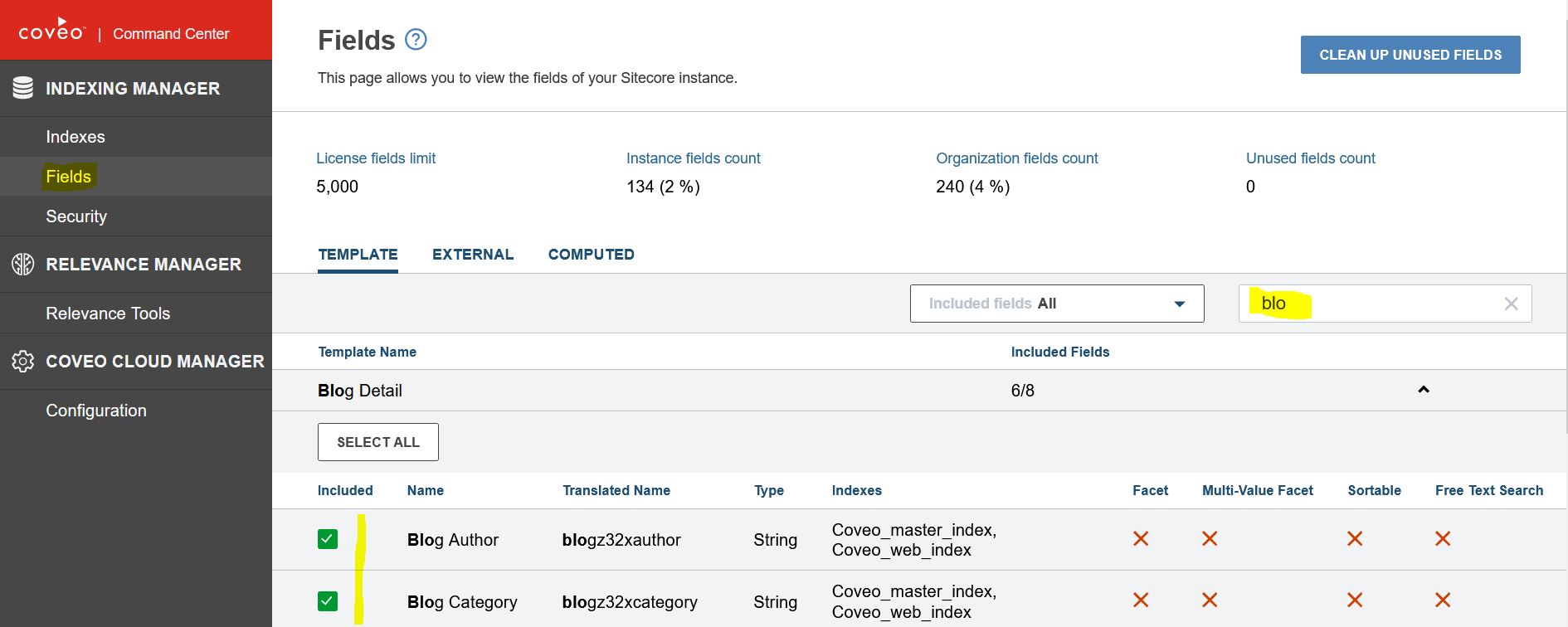
2) "Proper Configurations file in place", Coveo comes with its default configuration files which serves multiple purpose, but we will only focus on those files which are needed for searching and which we will be modifying. If you want to know about all the Config Files , Click the link.
Most frequent files that we will be using are
Coveo.SearchProvider.Custom.config: Contains the custom configuration of the Coveo Search Provider and pipeline examples. We can modify this file for
our needs, I will show you the example soon what kind of modifications can be done for our needs.
Coveo.SearchProvider.Fields.Custom.config: Contains the list of include fields. This file is automatically generated when from indexing manager menu we mark different fields as indexable from the interface or the PATCH or PUT fields services for the first time. No modification should be done to this file directly, Basically this file will be read by indexing mechanism to know what are the fields to index, We will see this in detail soon how this can be done from the interface and from where.
As shown in point-1 when we do "Apply and restart", it generates this configuration file in our wwwroot->app_config->coveo folder which contents all our needed fields that we selected.
NOTE: Coveo configuration file path may depend on version of the sitecore, Generally they can be found on above path, but check for documentation for sitecore config file path for different versions.
We should make sure to include this file in our source control to deploy it to higher environment once we are done developing in local, so this configuration is available on upper environment and fields can be indexed straight away.
3) "What design layout to use", Because to show the data on search page, coveo gives flexibility to use our own HTML template, which at the run time will pick our custom view to show the data, It is not part of indexing but it will come into picture where we want to show the data, so this decision will be made if coveo should show default view or it should show our custom view, and it will our custom view because our indexed data will have multiple fields and we would like to show them, we will see soon how can we configure our custom template and configure inside coveo so at run time it will show our custom HTML structure with data.
If we choose to use our custom html (generally we will need to do is because, we always need custom design and look and feel from coveo), we will need to create cshtml file in following folder
wwwroot->Coveo->Hive->templates->List of templates
We will need to tell coveo that use custom HTML and not its default, for that we will need to configure that in one of the existing coveo configuration in sitecore, we will see it in detail in next blog, but following how it looks, i have used custom html name as "MyBlogs.cshtml" in above path and below is how we should map it to "Coveo Result"

4) "Search page layout", We will need a different layout in sitecore, Because If we want to write our custom coveo queries and customization to data on client side when data is being rendered, we can use those JS etc in this custom layout (because other non-coveo pages will not need those JS so its good not load them there and using different layout will help).
5) "Proper coveo OOTB components in place in presentation detail with proper data and field configurations in them", Coveo components comes with their own place holders and configurations, so when you can put and use certain coveo components in those placeholders only and that is why there is a list of components which are mandatory for a search to work, We will see them in detail soon.
Point-5 is also as important as other points, because we will need to assemble all the coveo components on the presentation details of the specific search page, all the configurations we did above will work in conjunction with those components and our search page will be ready
In next blog, i will show you how the page is configured and what are the components we should use and if any configuration needed and how to work on different facets everything, so i think we are getting closer to the hands on
Wish you all a very happy independence day once again !!!


